I have been using Canva for years.
Not occasionally. Not just for one type of project. I have used it to design CVs, create pitch decks, build presentations, edit videos for Facebook and YouTube, make blog graphics, produce Pinterest pins, and create mockups for my Etsy digital product listings. If something needed to look good and I was not going to spend hours in Photoshop, Canva was the answer.
For most of that time, I used the free version. It felt like enough. I could make things that looked decent and got the job done.
Then I was creating a CV and opened the Pro templates. I remember scrolling through them and thinking, “These look completely different.” More professional. More vibrant. More polished. The free templates looked like something anyone could make. The Pro templates looked like something a designer had spent real time on.
That was when I bought Canva Pro.
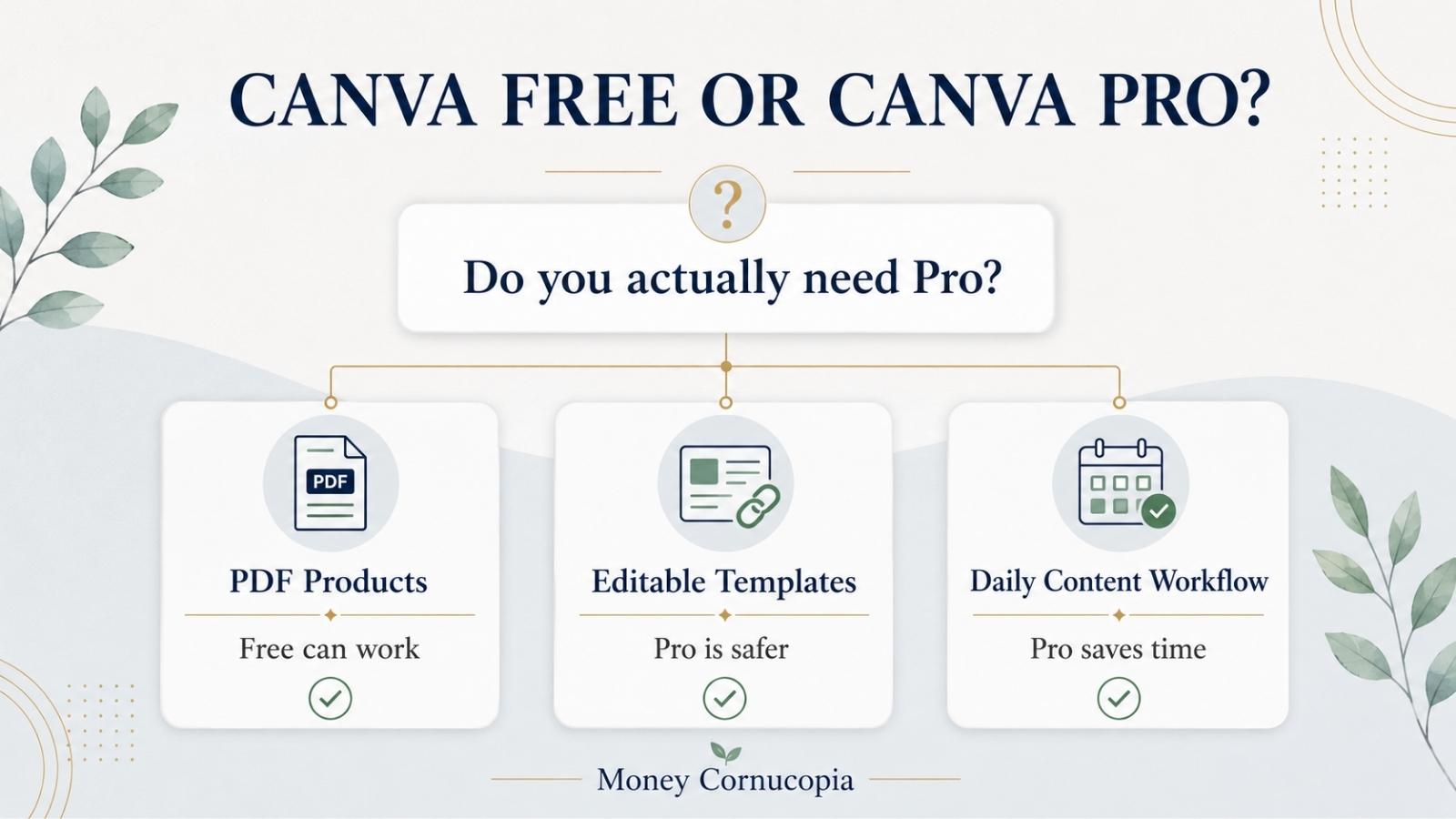
So if you are wondering whether Canva Pro is worth it for digital products, my answer is not a simple yes or no. It depends on what type of digital product you are selling and how regularly you use Canva to create content. The rest of this article explains exactly where the line is.
Quick Answer: Do You Need Canva Pro for Digital Products?
| Your situation | Best option |
|---|---|
| Testing your first digital product idea | Canva Free |
| Selling finished PDF planners or printables | Canva Free |
| Creating Pinterest pins occasionally | Canva Free |
| Creating pins, mockups, and blog graphics every week | Canva Pro |
| Wanting to sell editable Canva templates on Etsy | Canva Pro |
| Editing videos for YouTube, Facebook, or social ads | Canva Pro |
| Wanting faster workflow and better quality templates | Canva Pro |
If you are selling finished PDF products like planners, trackers, and printables, Canva Free is enough to start. If you are selling editable Canva templates where buyers receive a Canva link they can customize, you will almost certainly need Pro. If Canva is becoming a daily content creation tool for your digital product business, Pro becomes worth it quickly.
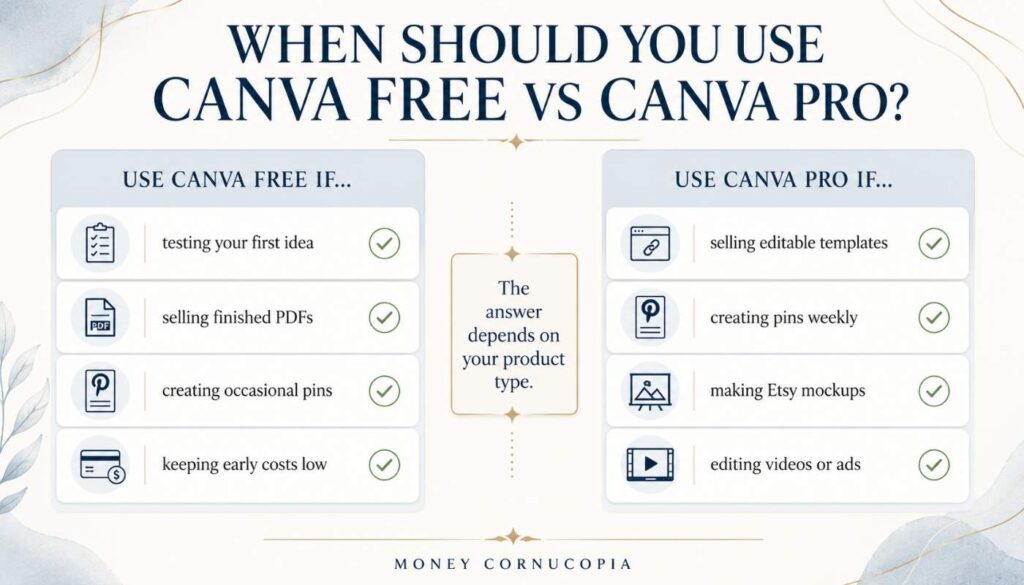
Table of Contents
What I Personally Use Canva For Every Week
Knowing how I use Canva helps you decide whether your situation matches mine.
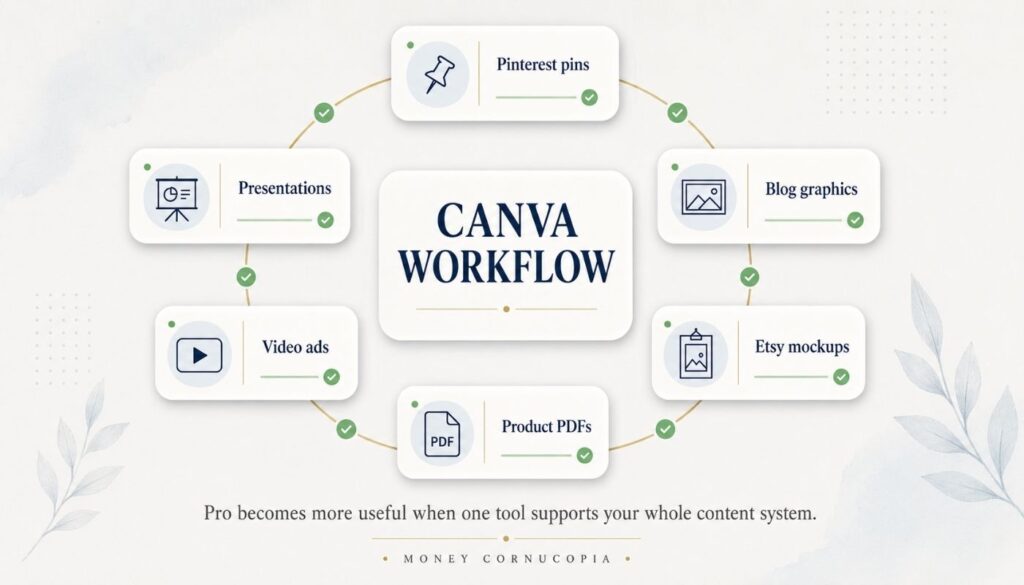
On any given week, I use Canva to design Pinterest pins for my blog articles. I create 12 pins per article across multiple design styles, schedule them over 12 days, and repeat this process consistently. You can see the exact Pinterest strategy I use in this article on driving free traffic to Etsy shops.
I also use Canva for blog header images and featured graphics, Etsy product mockups showing my finance templates in real context, and occasional presentations, pitch decks, and documents for freelance work.
The use case most people do not mention is video. Canva has a genuinely capable video editor that I have used to create Facebook video ads and short promotional videos. You can add music, transitions, text animations, and voiceover clips. It is not professional-grade video editing software like Premiere Pro, but for social media videos, short ads, and simple YouTube content, Canva’s video tools are fast and produce results that look professional without a steep learning curve. The video features are more extensive on Pro, with access to premium video templates and Pro elements that elevate the quality of the output.
The common thread across all of these uses is that I open Canva almost every day. That frequency is the first thing to consider when deciding whether Pro is worth it for your situation.
What You Can Create With Canva Free
The free plan is more capable than most beginners realize.
Canva Free gives you access to over one million professionally designed templates. You get more than three million stock photos and graphics, 5GB of cloud storage, and the ability to create content across more than 1,000 different formats, including social media posts, documents, presentations, and print materials.
For a beginner digital product seller, the free plan can genuinely produce finished PDF planners, trackers, checklists, and printables ready for immediate download. Budget planners, habit trackers, meal planners, and content calendars can all be designed in Canva Free and exported as a finished PDF that buyers receive as a complete file.
Clean Pinterest pins, basic Etsy product mockups, and consistent blog graphics are also achievable on the free plan. The free template library is not as premium as Pro, but with deliberate design choices, you can produce content that performs well.
Where Canva Free Starts Feeling Limited
The limitations are real, but they hit different creators at different points.
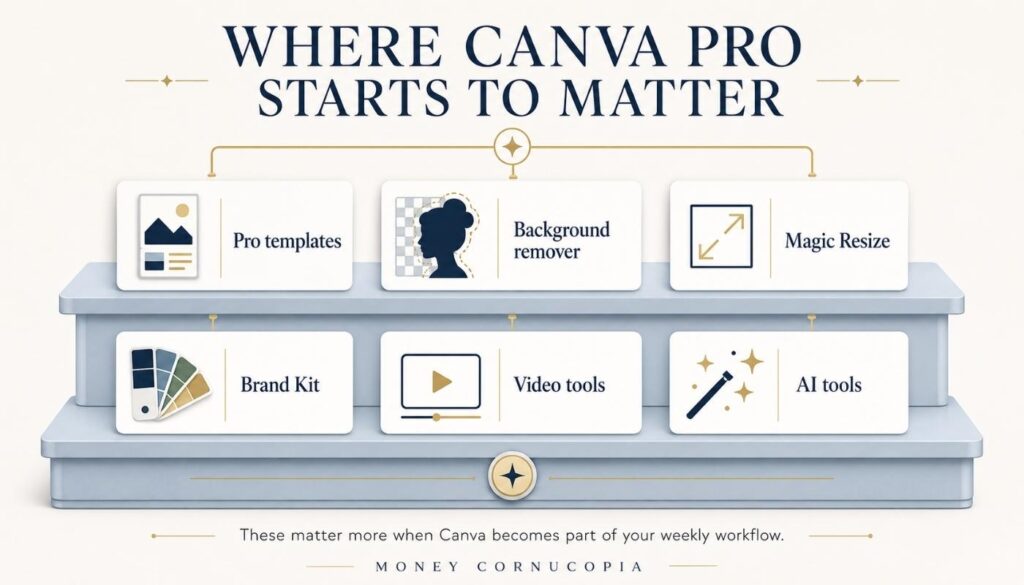
The Pro template quality is noticeably better. This was the single moment that convinced me to upgrade. When I opened the Pro templates for my CV, I could immediately see the difference. More polished. More vibrant. More current in their design style. That gap exists across every category, including Pinterest pin templates, presentation slides, product mockup frames, and video templates. If you care about the visual quality of your output, the Pro template library is the most significant upgrade you get.
Background remover is Pro-only. Creating product mockups or pin designs where you need to isolate an element from its background requires this feature. Doing it manually on the free plan is slow and rarely produces clean results.
Magic Resize is Pro-only. This feature lets you design something once and instantly resize it for different formats. If you are creating a Pinterest pin, a blog header, and an Etsy listing banner from the same design, Free requires manual recreation for each version. Pro does it in seconds. At the volume of content a serious digital product seller creates, this saves hours every month.
Brand Kit is limited on Free. One brand kit and three brand colors on the free plan. For a consistent visual identity across hundreds of Pinterest pins and product graphics, this becomes frustrating quickly.
Video features are more limited on Free. If you want access to premium video templates, more premium stock footage, Pro elements, background remover, and Brand Kit for consistent branded social videos and ads, Pro becomes significantly more useful.
AI tools are more extensive on Pro. Canva has added AI-powered features to both plans, but the full suite, including expanded design assistance tools, is part of Pro. Canva updates these features regularly, so check Canva’s current feature comparison for the exact breakdown of what each plan includes at the time you are reading this.
The Critical Issue for Digital Product Sellers: Canva Template Links
This is the most important section for anyone planning to sell Canva templates as a product.
There are two fundamentally different types of digital products you can create with Canva:
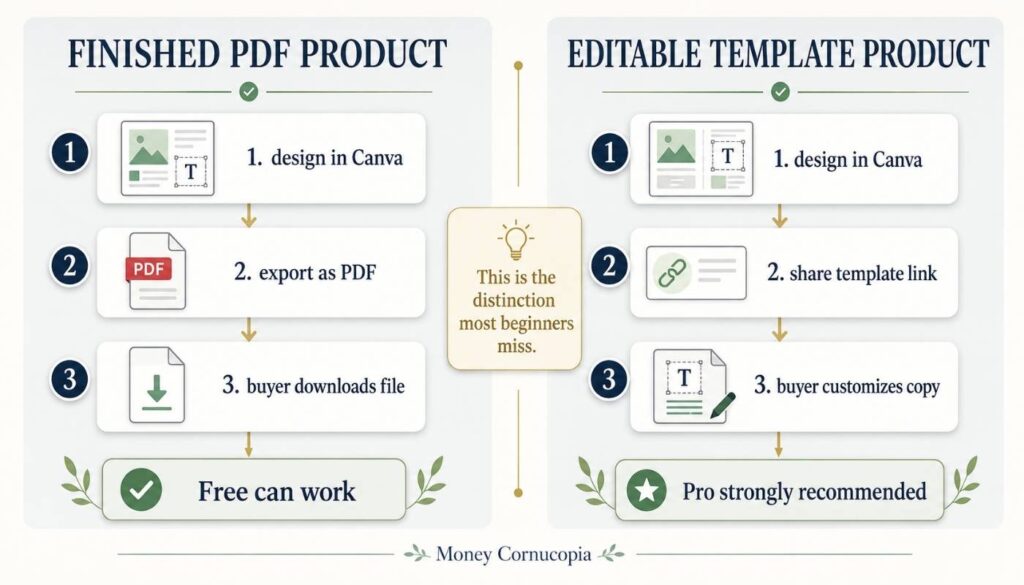
Finished files. You design something in Canva, export it as a PDF or image, and the buyer receives that completed file. They use it as-is without editing your design inside Canva. Planners, printables, trackers, and ebooks fall into this category.
Editable Canva templates. You design a template in Canva and share a special link. When the buyer clicks that link, they get a copy of your template in their own Canva account and can customize it with their own text, colors, and content. This is how most Canva template products are sold on Etsy and Gumroad.
The distinction matters enormously because, as of recent Canva platform changes, free users should not rely on being able to create new shareable template links. Multiple creator-facing reports indicate that Canva began moving template link creation to paid plans in 2025. That means if your product depends on delivering editable Canva template links to buyers, Canva Pro is the safer and more practical choice. Check Canva’s help page on template links for the most current information before building your product around this delivery method.
A Quick Licensing Note Before You Sell
Understanding Canva’s content rules is important before you list any product for sale.
According to Canva’s content licensing documentation, both Free and Pro users can sell original digital products they design using Canva’s tools. Finished PDFs, planners, ebooks, and similar products are permitted under their standard content license.
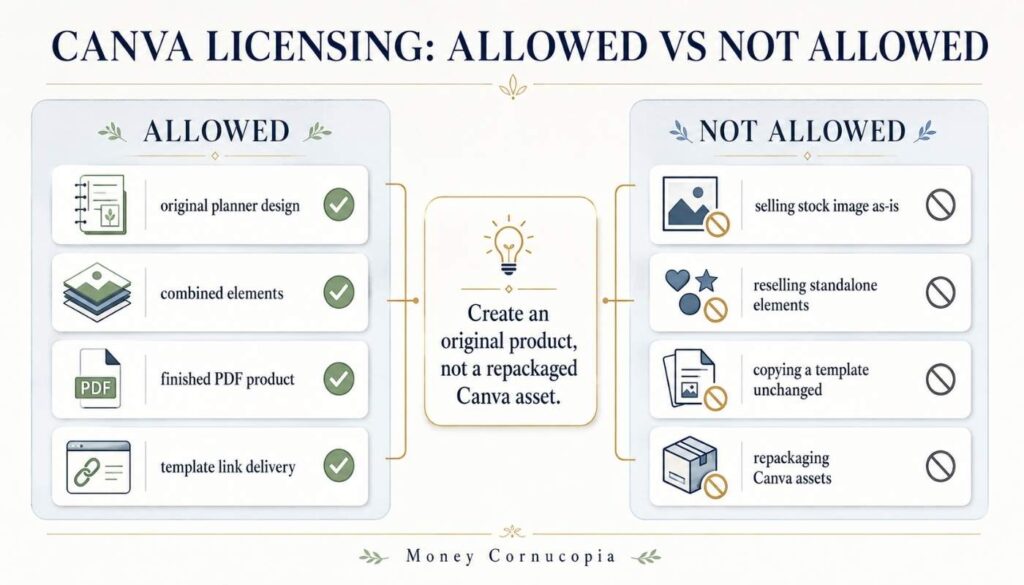
What you cannot do under any plan is sell Canva’s own content on a standalone basis. You cannot take a stock photo or design element from Canva’s library and resell it as-is. Your product needs to be an original design you created using Canva’s tools, with the elements meaningfully combined and transformed into something new.
For Pro Content used in templates, Canva specifies that if you want to sell editable templates containing Pro elements, they must be sold as Canva template links rather than downloaded files. This is one more reason why Pro becomes effectively necessary for serious Canva template sellers.
If you are unsure whether a specific product idea complies with Canva’s licensing, read their full content licensing agreement before publishing your listing.
Can You Actually Sell Digital Products With Canva Free?
Yes, with one important condition: the product must be a finished file, not an editable template link.
Here is the honest product-by-product breakdown:
| Product type | Canva Free? | Notes |
|---|---|---|
| Finished PDF planners | Yes | Export as PDF — buyer gets finished file |
| Printable checklists and trackers | Yes | Same as above — no Canva account needed for buyer |
| Finance and budget templates as PDFs | Yes | Works well on the free plan |
| Pinterest pins for your blog | Mostly yes | Pro templates and Magic Resize speed this up significantly at volume |
| Editable Canva template links | Pro strongly recommended | Free users should not rely on creating new template links — Canva changed access around this feature in 2025 |
| Etsy Canva template products | Pro strongly recommended | Core delivery method requires paid plan |
| Video content for social media or ads | Pro significantly better | Premium templates and Pro elements elevate quality noticeably |
For my own products on my Etsy shop, I sell finance templates and planners as finished PDF files. These work on either plan. But the mockups I create to show those products in the listing images, and the Pinterest pins I use to drive traffic to those listings, are all significantly better with Pro.
When Canva Pro Is Worth It
Pro pays for itself faster than most beginners expect once content creation becomes consistent.
It is worth it when you are creating Pinterest pins regularly. At 12 pins per article, the time saved by Magic Resize alone justifies the monthly fee within weeks. I wrote about the full Pinterest strategy behind this in my article on Pinterest traffic for Etsy sellers.
It is worth it when your listing presentation matters. The quality of your Etsy product mockups directly affects whether buyers trust your listing enough to purchase. I covered why listing quality matters so much in my Etsy listing audit article, and Pro’s mockup frame templates and background remover make a professional presentation significantly easier.
It is worth it when you want to sell editable Canva templates. If this is part of your digital product strategy, creating shareable template links practically requires a Pro account based on current platform updates.
It is worth it when you create video content. Facebook video ads, YouTube shorts, and promotional videos for your digital products are all achievable in Canva’s video editor. Pro unlocks premium video templates and Pro elements that make social media and ad video content look significantly more polished.
It is worth it when the template quality matters to your output. The Pro library is meaningfully better, and that difference compounds when you are creating content every single day.
When Canva Pro Is Not Worth It Yet
Do not upgrade if you fit these descriptions.
You have not launched your first product yet. Test your idea with the free plan. Upgrade when you have evidence of traction, not before.
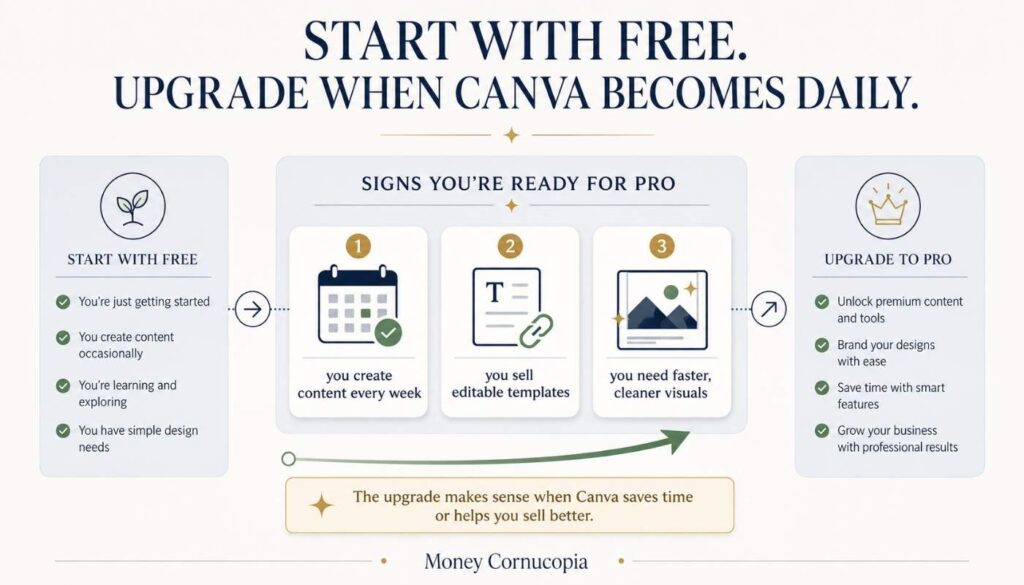
You are creating content occasionally. If you open Canva once or twice a month, the monthly fee does not pay for itself. Pro is for consistent, daily, or near-daily creators.
You are only selling finished PDFs, and the free templates feel adequate. If the quality of your current output satisfies you and your products do not require editable template links, the free plan remains a reasonable choice until your volume grows.
You are keeping costs at zero in your earliest months. The free plan is capable enough to get started, and the upgrade can follow your first sales.
My Honest Recommendation
Use Free if / Use Pro if:
| Use Canva Free if | Use Canva Pro if |
|---|---|
| You are testing your first product idea | Canva is already part of your daily workflow |
| You sell finished PDF products only | You want to sell editable Canva template links |
| You create content occasionally | You create Pinterest pins and graphics regularly |
| You are keeping early costs minimal | You create video content for social or ads |
| You want noticeably better template quality |
Start with Free if you are testing. Move to Pro when Canva becomes a daily tool.
If you are at the point where you are opening Canva every day to create Pinterest pins, product mockups, blog graphics, and videos, the Pro fee is a straightforward decision. The quality difference in templates is real. The time savings from tools like Magic Resize and background remover are real. The capability difference for video content is real.
For me personally, the moment I saw the Pro template library while building my CV, I upgraded and have not questioned it since. That was before I started creating 12 Pinterest pins per article, designing Etsy mockups, and building a content system that uses Canva almost every single day.
At its current pricing, which you can check on Canva’s official pricing page since rates vary by country and billing period, Pro is one of the better value tools in a digital product seller’s toolkit. The fee is small. The difference in output quality and workflow speed is meaningful.
Frequently Asked Questions
Can you sell digital products made with Canva Free?
Yes. According to Canva’s content licensing documentation, both Free and Pro users can sell original digital products designed using Canva’s tools. This includes finished PDFs, planners, printables, and ebooks. The restriction is that you cannot sell Canva’s own content on a standalone basis. Your designs must be original work created using Canva’s tools and elements combined meaningfully.
Do you need Canva Pro to sell templates on Etsy?
If you are selling editable Canva templates where buyers receive a customizable Canva link, you should use a Pro account based on current platform changes around template link creation. If you are selling finished PDF templates that buyers download and use as-is without editing in Canva, the free plan remains sufficient. Check Canva’s help page on creating products for sale for the most current guidance.
Is Canva Pro worth it for beginners?
It depends on your usage frequency. If you are creating content consistently, such as daily Pinterest pins, regular blog graphics, or Etsy product mockups, Canva Pro pays for itself quickly in time savings and quality improvements. If you are creating content occasionally or just starting out, the free plan is capable enough to begin.
What is the main difference between Canva Free and Canva Pro for digital product sellers?
The most practically significant differences are the Pro template library quality, the ability to create shareable template links for selling editable products, the background remover tool, Magic Resize for adapting designs across formats, expanded video capabilities with premium templates and elements, and a more extensive Brand Kit. For digital product sellers creating consistent visual content, these features affect both the quality of output and the time it takes to produce it.
Can you use Canva to create Pinterest pins that perform?
Yes. The free plan has more than enough capability to create effective Pinterest pins. The Pro template library produces higher-quality starting points, and Magic Resize makes adapting designs across formats significantly faster, but neither is required to get started. I covered exactly how to create pins that drive outbound clicks in my Pinterest strategy article.
Can you edit videos with Canva?
Yes. Canva has a built-in video editor that handles music, transitions, text animations, and voiceover clips. It is a practical tool for social media videos, short YouTube content, and Facebook video ads. Pro unlocks premium video templates and Pro elements that elevate the quality significantly for anyone creating branded video content regularly. For simple social media and ad video content, Canva’s video tools are fast and produce professional-looking results without the learning curve of dedicated video editing software.
How much does Canva Pro cost?
Canva Pro pricing varies by country, billing period, and any current promotions. Monthly and yearly billing options are available, with yearly billing typically offering a better per-month rate. Check Canva’s official pricing page for the current price in your region before making any decision.
Can you use AI tools in Canva Free?
Canva includes AI-powered features on both free and Pro plans, though the full suite is more extensively available on Pro. Canva updates these features regularly, so check Canva’s current feature comparison for the accurate breakdown of what each plan includes at the time you are reading this, as availability can change.
Final Thoughts
I have been using Canva for years across more use cases than I can easily count. CVs, pitch decks, presentations, Facebook video ads, blog graphics, Pinterest pins, product mockups. It has been part of almost every creative project I have worked on.
The free plan is genuinely useful. It is not a stripped-down demo of something better. It is a capable design tool that a serious creator can use to produce good work.
But the Pro plan is better in ways that compound when Canva becomes part of your daily workflow. The template quality was enough to make me upgrade, and that was before I started creating Pinterest pins daily, building a digital product business, and using Canva for video content that represents my brand across social media.
If you are deciding whether your side hustle justifies the expense of Pro yet, my honest answer is: start with Free. Learn Canva, create your first product, and publish your first pins. Once Canva is something you open every single day and the quality ceiling of the free plan starts to matter, the upgrade is an easy decision.
The fee is small. The quality difference is real. And if you are building a serious digital product business, the tools that help you create better content faster are exactly the tools worth paying for.
Leave a Reply